The Blog Market

  • Home
  • About
  • Resources Directory
  • Advertise With The Blog Market
  • Contact Us

How to Create Round Images Using CSS

December 29, 2014 by jennifer Leave a Comment

Making images round is the perfect way to add a little somethin’ to a blog design. Usually I use Photoshop, but it can also easily be done using CSS. This comes in handy if you don’t have Photoshop or if you change your mind a lot when it comes to image styles.

How to Create Round Images Using CSS | The Blog Market
If you want a completely round image, you’ll need to start with a square shaped photo.

watercolor-square
There are a couple different ways you can add your CSS codes. You can add it straight to your HTML tag which will look like this:

<img style=”border-radius:50%;” src=”http://yourimageurl.jpg”>

Another option is to add a class to your image, then add the CSS in your designated CSS editor. This is a good option if you need to edit the style of multiple elements. Here’s what that would look like:

<img class=”round-image” src=”http://yourimageurl.jpg”>

Then you would go into your CSS editor and add the following code:

.round-image {
border-radius: 50%;
}

For this tutorial, I used option #1 and added the CSS directly to my HTML image tag. Here is the result:

watercolor-square

You can also use the border-radius property to add subtle rounded edges to any image or element. Instead of border-radius:50%; you might try 10%, creating something like this:

watercolor-square
The border-radius property can be used on other elements too, not just images. It looks great when used with sidebars, date headers, and category labels. Let me know if you have any questions!
Leave a Comment

Weekly Resources

December 26, 2014 by jennifer Leave a Comment

Good morning! I’ve been coming across some incredibly helpful resources for bloggers lately. Here is round two of my faves:

Weekly Resources | The Blog Market

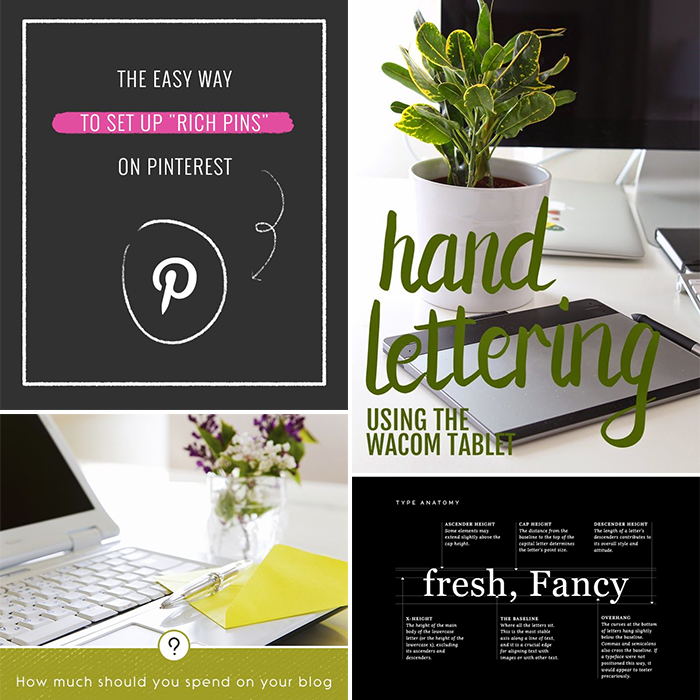
1. Melyssa at The Nectar Collective recently posted this handy guide to using rich pins! So helpful for someone like me who didn’t know about rich pins until like a week ago.

2. I’m all about a good hand lettering tutorial. Jenn at Hello Brio provided this awesome tutorial for creating brush calligraphy with a Wacom Tablet. Can’t wait to try these techniques out.

3. This is one of my favorite typography guides ever! Click here to view the entire fonts cheat sheet on Elle & Co.

4. When growing a blog, I think it’s really easy to throw money around and hope for the best. Noor has a great perspective on how to decide what you should be spending on your blog.


For more helpful links, visit my Resources for Bloggers board on Pinterest. Have an amazing weekend!

Leave a Comment

Merry Christmas!

December 25, 2014 by jennifer Leave a Comment

Merry Christmas, friends! This week I flew down to California and am spending time with my family. I realized that lots of bloggers out there were taking breaks this week (what a thought!) so I jumped on that heavenly train. Taking breaks to spend meaningful time with family or in solitude is the best thing ever.

The Blog Market

I hope you’re experiencing lots of warmth and love today.

Leave a Comment

Inspect Element: Preview Your CSS Changes in Real Time

December 23, 2014 by jennifer Leave a Comment

When I was first learning CSS, I definitely read tutorials but most of my understanding came from trial and error. In order to learn to code, you have to experiment a little. The best way to temporarily try CSS codes on your website is to use the “Inspect Element” tool. This is your internet browser’s best kept secret. It allows you to go into the code of your website and preview changes before actually committing to anything. Additionally, you can go into the codes of other websites. See a font you like on someone else’s blog? This will help you find out what it is. This tool works in almost every internet browser (except Internet Explorer). Warning: You might turn into a crazy CSS-loving machine and lose a bunch of sleep tonight fixing up your website. It happens.


Inspect Element: The Best Tool for Learning CSS via The Blog MarketTo use this tool, right click (or command-click) any element on your site and select “Inspect Element”.

Screen Shot 2014-12-20 at 10.12.41 PM

A window will appear at the bottom of your screen containing all the codes that make up your site. On the left you’ll see the HTML framework. On the right side you will see the CSS. This is where the fun begins.

Screen Shot 2014-12-20 at 10.13.14 PMMake sure you’ve selected the correct element. The screenshot above shows that <div class=”utility-bar”> is highlighted which is perfect because it is the element I want to change.

The CSS codes on the right side of the bottom window are completely customizable. In the screenshot below, you can see that I’ve changed the background color from #303030 to #fff5e8, making it that nice peach color. So many things are possible with CSS and that’s why I love it. If you need a refresher, read my intro to CSS post!

Screen Shot 2014-12-20 at 10.13.44 PM

Keep in mind this is all just a preview. If I really wanted to change the background color of my utility bar to peach, I would have to go into my CSS editor and add that code. When changing up my blog, I always use the Inspect Element tool before putting any real codes into my blog. It speeds up the process and helps me from making too many coding mistakes.

For a list of CSS attributes, properties, and definitions, take a look at my CSS cheat sheet! If you have any questions, feel free to ask them below in the comments. 🙂

Leave a Comment

Best Planners for 2015

December 18, 2014 by jennifer Leave a Comment

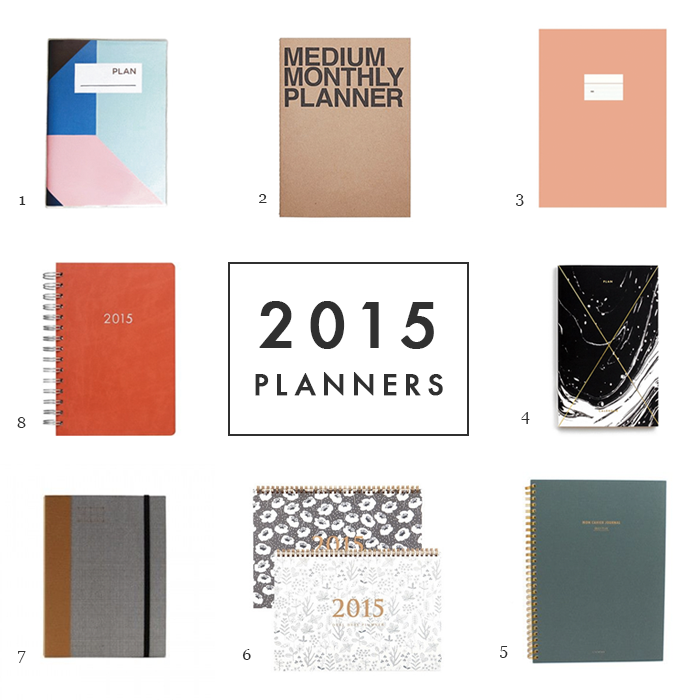
One of my favorite parts of the end of the year is getting to pick out a new planner. I love undated planners because, let’s be real, I sometimes forget to use my planner for weeks months at a time. For the past few months I have been using the peach Paperways planner below (#3) and it’s the absolute best. Before that, I used that pretty persimmon one from Paper Source (#8). Just FYI, it comes with stickers. Important details.

Best Planners for 2015 | The Blog Market

1. Color Block Planner | Poketo
2. Medium Monthly Planner | Bow & Spencer
3. Paperways XL Planner | Een Nieuw Avontuur
4. Gold Foil Any-Year Daily Planner | Julia Kostreva
5. Mon Cahier Planner | Moorea Seal (available in coral)
6. 2015 Dailylike Planner | Fall in Design
7. Fabric Bound Planner | Dwell
8. 2015 Persimmon Date Book | Paper Source

Have you gotten a planner for the new year yet? Seems they are all selling out like crazy.

(ps. If you missed it, I posted a roundup of 2015 calendars last week!)


Leave a Comment

  • Newer Posts
  • 1
  • …
  • 95
  • 96
  • 97
  • 98
  • 99
  • Older Posts

Recent Posts

  • Easy Ways to Add Greenery to Your Workspace
  • How to use Pinterest board sections to get organized + stay inspired
  • Friday Favorites 05 | Terrazzo Trend
  • Best Creative Planners for 2020
  • 10 Journal Prompts for Creative Motivation

Recent Comments

    © 2018 The Blog Market · · BACK TO THE TOP